Troubleshooting
Start with the status and error shown on Start/Stop. If the steps below do not resolve the problem, send a diagnostic report.
DNS does not start
Check the message on Start/Stop and expand Technical details.
- Service is unavailable: On Windows or Linux, check that the installed
Mudfish DNS service is running. Opening the window alone does not start a
missing or stopped service. On Linux, inspect it with
systemctl status mudfish-dns.service. - DNS port already in use: Stop another local DNS program, including the old Mudfish DNS Client, before trying again.
- Permission or capture error: Complete the macOS extension or Android VPN approval. On Linux, check the eBPF requirements if you enabled automatic capture, web protection, or app/domain selection.
- No DNS servers available: Check your network, keep a server enabled, and inspect its address, transport, certificate hostname, and connection status. If you configured a SOCKS5 proxy, check that it is reachable too.
DNS is running, but a site still does not open
Check the server statuses in Settings, clear the DNS cache, and reopen the site. If the network blocks DoT connections, try a supported DoH server.
A browser using its own encrypted DNS may bypass Mudfish DNS. Check the browser's Secure DNS setting if you want it to use the system resolver. Also check app/domain exclusions and whether the selected connection method covers that app's DNS requests.
Some blocks affect the website connection rather than DNS. Try optional web protection where supported, keeping its coverage limits in mind. It cannot guarantee access on every network.
DNS settings need restoring
Use Retry restoration on the Start/Stop page after resolving the error shown under Technical details. Mudfish preserves the original settings when restoration fails.
On Linux, another program changing /etc/resolv.conf can create a restoration
conflict. Retrying without resolving the conflict will fail again. Keep the
saved recovery data and include the error in a problem report if you need help.
Report a problem
- Open Report a problem and describe what happened and how to reproduce it.
- Select Include recent DNS lookups and web connections only if you want to attach recorded history. It includes up to 32 existing entries and does not turn recording on.
- Select Review diagnostics and check the report contents.
- Select Send report. Keep the reference number for follow-up with Mudfish support.
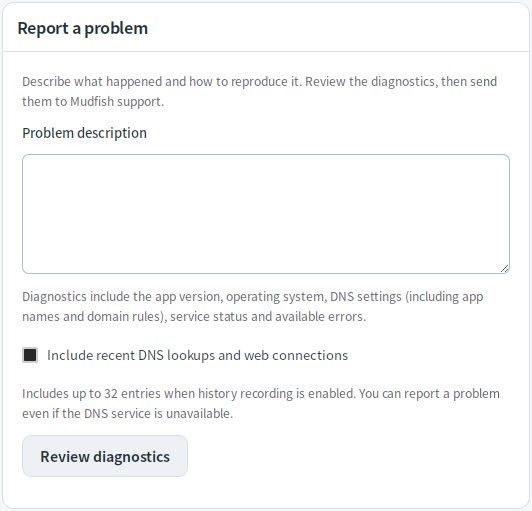
Diagnostics include the app version, operating system, DNS settings (including server addresses, app names, and domain rules), service status, and available errors. On Windows, available recent service error logs are also included. The report creates a private support issue. You can prepare a report even if the DNS service is unavailable.