Nodes
Is the basic mode better or the advanced mode better for mudfish node pick?
In my humble opinion, "Basic Mode" is definitely better than "Advanced mode" if you can find a good route with "Basic Mode".

Should I use the basic mode and set the better node near game server location?
My answer is yes or no. :-) Please check How to pick the best mudfish node for game I play? section first. Depending on game characteristics (e.g. restricting a region to connect), you should change mudfish nodes.
Should I use advanced mode and set one node near here and the other on game server?
My preference is 'Basic Mode' first. If you can't see any beneficial by using the basic mode, you can try to use 'Advanced Mode'.
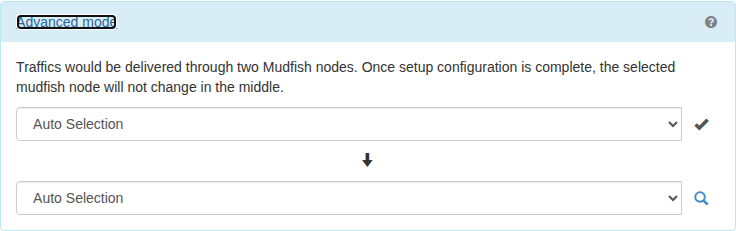
What is the advantage of connecting to the game through two Mudfish nodes over one?
Please note that you don't use two mudfish nodes (advanced mode) if your connection is enough stable and okay to access to the game server. Definitely there's pros and cons for advanced mode than basic mode
-
Pros
-
If you can't detour the network congestion with one mudfish node (basic mode), you can use two mudfish nodes.
-
If your game has a region restriction and you can't find a proper node to access with one mudfish node, you can use two mudfish nodes
-
-
Cons
- Using two nodes increases instability of connections. Specially for RTT stddev could be more bigger though it depends on the status of mudfish node.
How to pick the best mudfish node for game I play?
There is no easy answer for this question. Depending on the internet status (at your ISP, mudfish node or game server ISP), the result could be very vary. However the general method to pick a mudfish node is as follows:
-
Equip the game item on your account.
-
Click the game item to enter the configuration menu at Dashboard.
-
At 'Setup' tab, you can find 'Nodes' option. At there click the magnifier icon, it'll pop up a window.
-
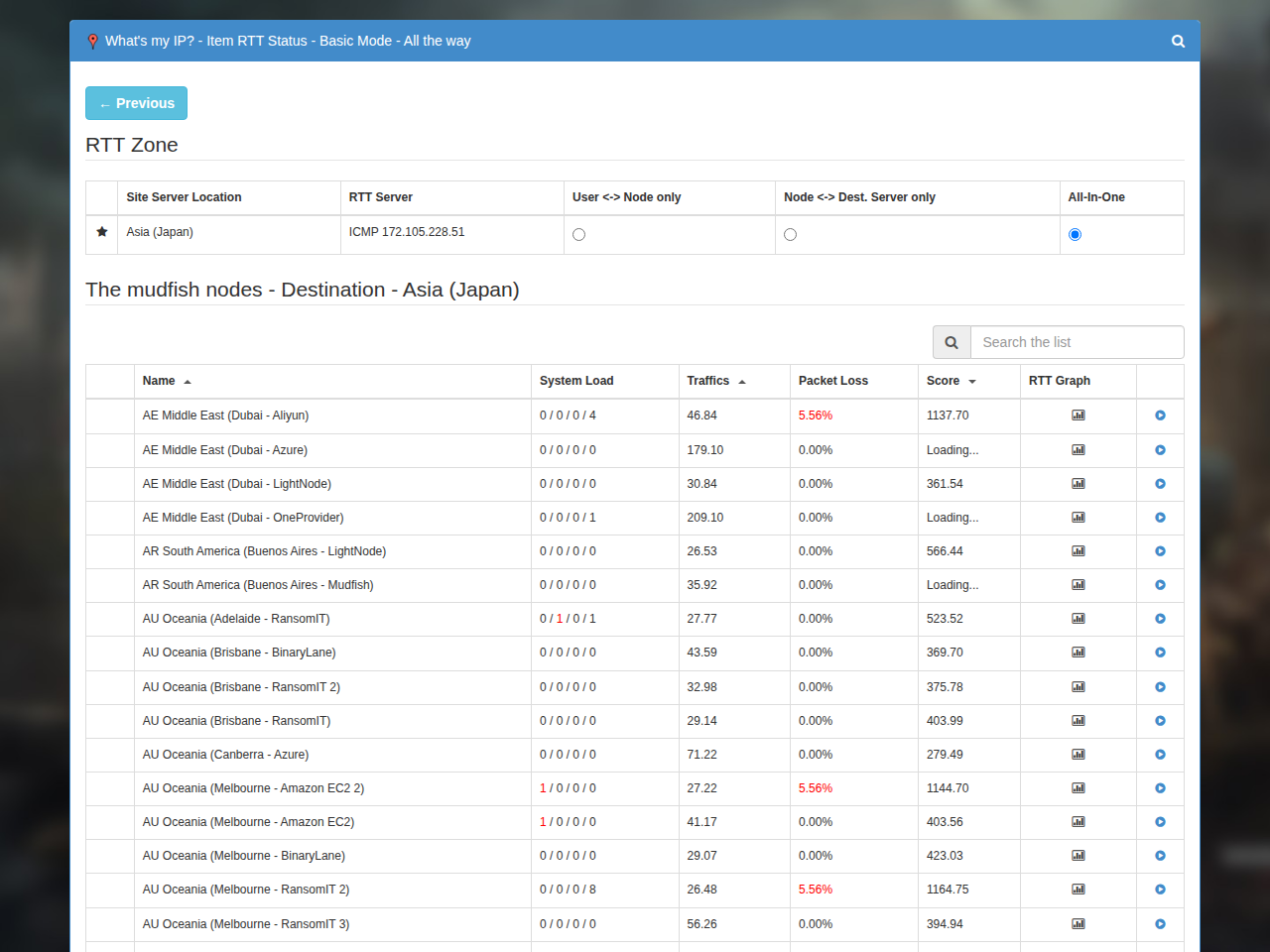
At pop-up window, you can click a game server location you enjoyed to play. Depending on your game location, it shows more details information from each mudfish nodes. For example,
- Server Location
- System Load
- Traffic for last 5 minutes
- Score
- RTT Graph.
-
To pick the mudfish node, the following are priorities to be considered.
-
Lower score is better.
-
If multiple nodes have similar score values, please see RTT graph. If the graph is around flat (points that RTT std is closer to 0), it'd better.
-
Traffic for last 5 minutes could be considered. But depending on the mudfish node's capacity, it could be okay or not.
-
What's nodes for having PBE characters on the title?
PBE is a word of League of Legends; short for Public Beta Environment. It points that nodes are for testing the beta features of Mudfish problem. So please note that these VPN nodes are
-
Frequently be rebooted or restarted the system or applications.
-
Without notification, it could be changed to the non-free VPN node.
-
Without any notifications, it could be closed.
These test nodes are normally available even without purchased credits.
Where can I look the recommended paths for items?
Click the item on the dashboard and open its “Setup” tab. Select the destination server location to see recommended paths calculated from your recent RTT data.
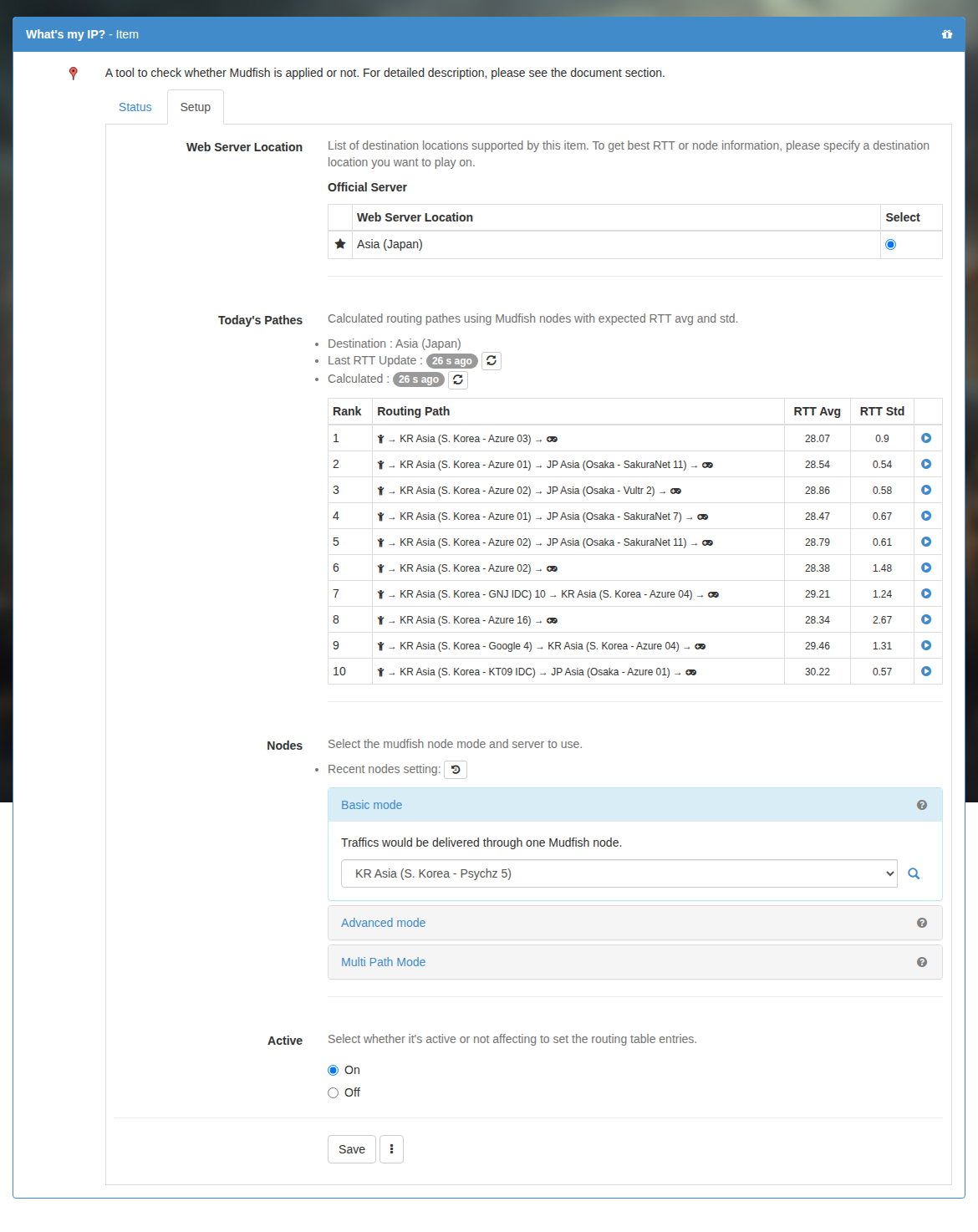
Under “Nodes”, select “Basic mode” and click the magnifying-glass icon. Choose the destination server location in the popup to compare node scores and RTT information.
How do I get the updated routing paths?
Unfortunately at this moment it's no way to update it manually. It's one of tasks I should fix. However these update event is triggered:
-
When you sign in using Mudfish Launcher.
-
When you changed the option of game item.
-
When you changed the configuration of Mudfish.
-
When you changed Full VPN mode option.
But please note that these update processing should be delayed depending on how RTT calculation server is under load.
What does System Load mean?
These values means "CPU Steal % / IO Wait % / No. of Network Card Error / Congestion Score ".
-
CPU Steal %
This points that how many CPU % is stealed by Host OS if the mudfish node is on virtual environment. So if it's high, it means it's under more heavy load. A value near zero is preferable; avoid nodes at 10% or higher. At 100%, the virtual node can be effectively stalled, causing substantial packet delays.
-
IO Wait %
If this value is high, this points that there's many disk related operations on this mudfish node. Below 1% is usually negligible; above 5% can indicate disk activity likely to affect latency.
-
No. of Network Card Error
It shows packet drops or other errors at the node's network interface. Excessive incoming traffic can cause this. Prefer a node with no such errors.
-
Congestion Score
This number points how many connections or sessions from the mudfish users are established (created).
For example, if this value points 50, it means there are 50 connections between mudfish node and users.
So the lower number is better if possible. This indicator appears in v5.4.2 and later: 50 or above indicates heavy congestion, while 10 or below indicates relatively little congestion.
Do I have to restart my game whenever I choose a new node?
Yes I think so if you already connected to the game. If not connected yet you don't need to restart the game.
Less traffic or more traffic is better for a node?
It depends on the network capacity of each mudfish nodes. However unfortunately each mudfish node has different network bandwidth. So even if a node has a high traffic, you can still get a smooth response from the node if it doesn't hit the limit of bandwidth.
Which a mudfish node is best to connect the China game server?
If you'd like to connect the game server locates at China mainland, please remember the following things when you pick a mudfish node:
-
There's a Great Firewall between the china mainland and outside internets which does filtering or blocking the data. Due to this firewall, your internet connection could be very unstable when you play the china game server.
-
Also ISPs of china have their own network policy or firewall to filter the data.
How to pick a mudfish node for china game server?
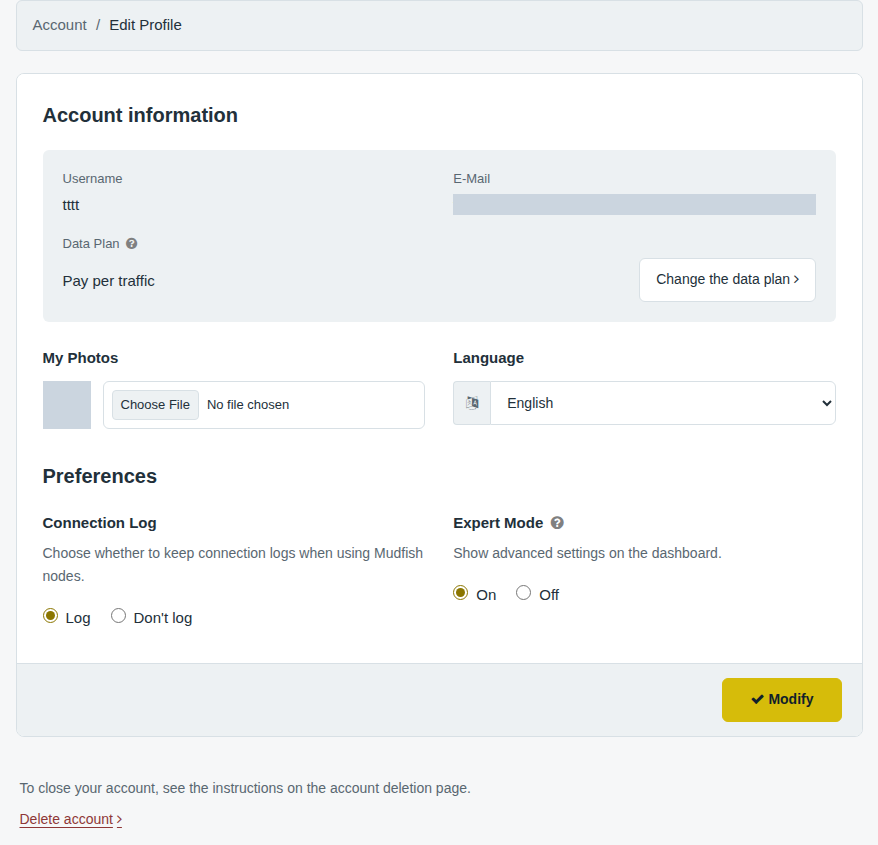
Most important thing is RTT stddev between mudfish nodes and the game server. This information is available when you click "the magnifier icon" found at the item configuration after enabling Expert Mode.
-
Normally Hong Kong based mudfish nodes have good connections to the china mainland.
-
Sometimes South Korea based mudfish nodes have good connections too.
-
If you're picking a mudfish nodes based on RTT avg not RTT stddev, there's more chance to meet the ping spikes and packet losses.
Must I choose a node in my country or the game server's country?
No. Choose the node that gives the best complete route to the destination. A nearby node is not necessarily fastest, and a US game server does not necessarily require a US node. If the game or streaming service restricts access by country, choose an exit node in the required country.
Will a node always reduce ping or disconnections?
No. Different networks and node conditions can reduce, preserve or increase RTT. Physical distance also imposes a latency limit. Congestion or failures at any ISP along the route can still cause delays and disconnections.
Compare both average RTT and standard deviation: the average describes speed, while a deviation near zero indicates consistency.
What does Auto Selection mean?
It lets Mudfish choose a node for an item instead of requiring a manual choice. The original v4 behavior selected a node near the user's location. For your particular game, compare the complete route and test manual selections too.
How do I change the node?
- Full VPN: open “Setup → Program → Full VPN”, select a node and apply the settings. “Status → Nodes” shows RTT averages and deviations for the segment between your computer and the nodes; it does not measure every possible destination you access in Full VPN mode.
- An item: click it on the dashboard, open its “Setup” tab and change the node there. Item recommendations account for both your computer-to-node and node-to-destination segments.
When connecting to a node in China fails, try a different connection protocol.