Program (General)
I'd like to play LoL. How can I set it?
I'm assuming that you are a user using mudfish v4. That's a very simple as follows:
- After sign-up, please download and install the mudfish program which is available at https://mudfish.net/download
- Run the mudfish launcher and sign-in with your mudfish account.
- Go to 'Item → Equip Items' menu then buy a 'League Of Legends' item.
- When it bought, the configuration would be automatically set for you.
- Done! Enjoy your game.

Can I close the browser while playing?
Yes definitely. However please make sure that a mudfish icon found at the system tray (right bottom) is alive.
How do I know if its working?
With the real-time traffic
The dashboard shows real-time traffic. Check how traffic changes while using a game or website and after closing it. The screenshot is a test-account example.
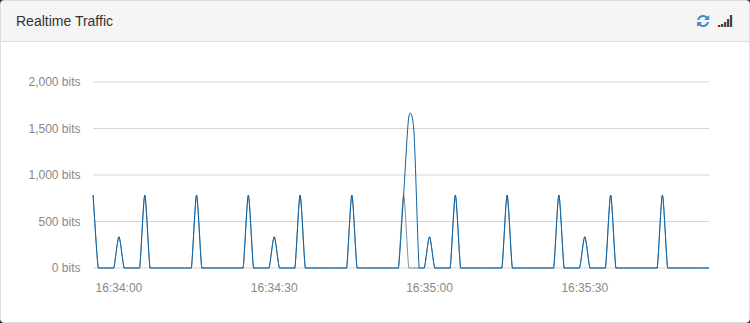
A dark blue line means RX (input bits, not bytes) while a gray line means TX (output bits) respectively.
By terminating the mudfish
Try to terminate the mudfish forcibly while playing the game after applying the mudfish.
If the game connection is also terminated when mudfish exits, it means your connection is via mudfish. If not something is wrong.
Auto configuration isn't working for me.
Normally this issue could be caused by various reason but please check the following items.
-
Is the mudfish process running correctly?
If mudfish works correctly, with Task Manager, you can see three processes, mudfish.exe, mudrun.exe and mudflow.exe after signing in. If not, there was a problem to launch the program.

-
Check the mudfish core log file.
At the dashboard, open 'Status → Process' (http://127.0.0.1:8282/status/processes.html). At there you can see 'Log messages' from Mudfish Core. If it launched correctly, at end of log messages, 'Ready' line should be shown. If not, it could be that the program got a hang at some point. Please try with older release version.
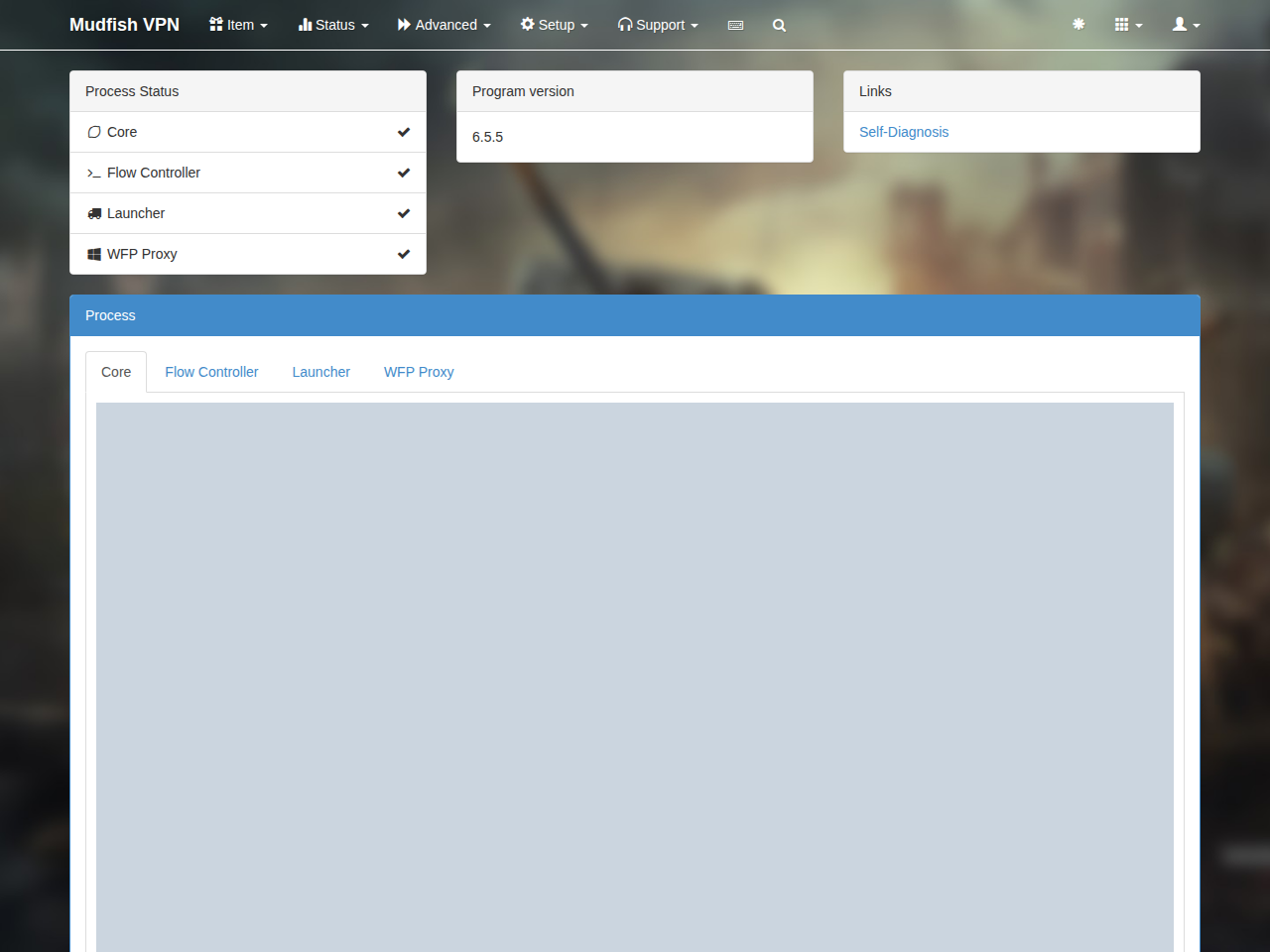
The following error codes are well-known codes which cause this configuration stuck.
-
This error could happen if DHCP client of your OS doesn't response well or your private firewall blocks ARP packet from Mudfish process. Please check above error links for workarounds.
-
-
Check your game items equipped.
Sometimes one of game items you equipped has a option for mudfish node as "Auto Selection". It could take some times depending on no. of mudfish nodes.

Auto configuration gets stuck at 10%
Check the auto-configuration section above and the Self-Diagnosis Codes. Also check these common causes:
- Restart Mudfish after buying credits for the first time. Otherwise, MUDEC_00049 can prevent configuration.
- Run Launcher as administrator.
- If information from the master server is delayed, try refreshing the dashboard with F5.
- Open “Status → Process” and check whether the Core process is running
correctly. Check its log, or inspect
mudfish_stdout.txtin the installation directory for ERROR, FATAL or CRIT messages. Post the log as a private topic on the Mudfish forums if you need help. - Auto Selection may take one to three minutes. Selecting nodes manually can reduce configuration time to about ten seconds.
In older v4 releases, a Core log ending with Setting the default gateway as A.B.C.D
and never reaching Ready can indicate a hang. The historical workaround was
to test v4.2.5 or an earlier release from https://mudfish.net/releases/.
Progress Bar for auto configuration is gone!
To show the progress bar for auto configuration, please try to change:
-
The configuration of items you're equipping.
-
Or the configuration of programs found at "Setup → Program" menu.
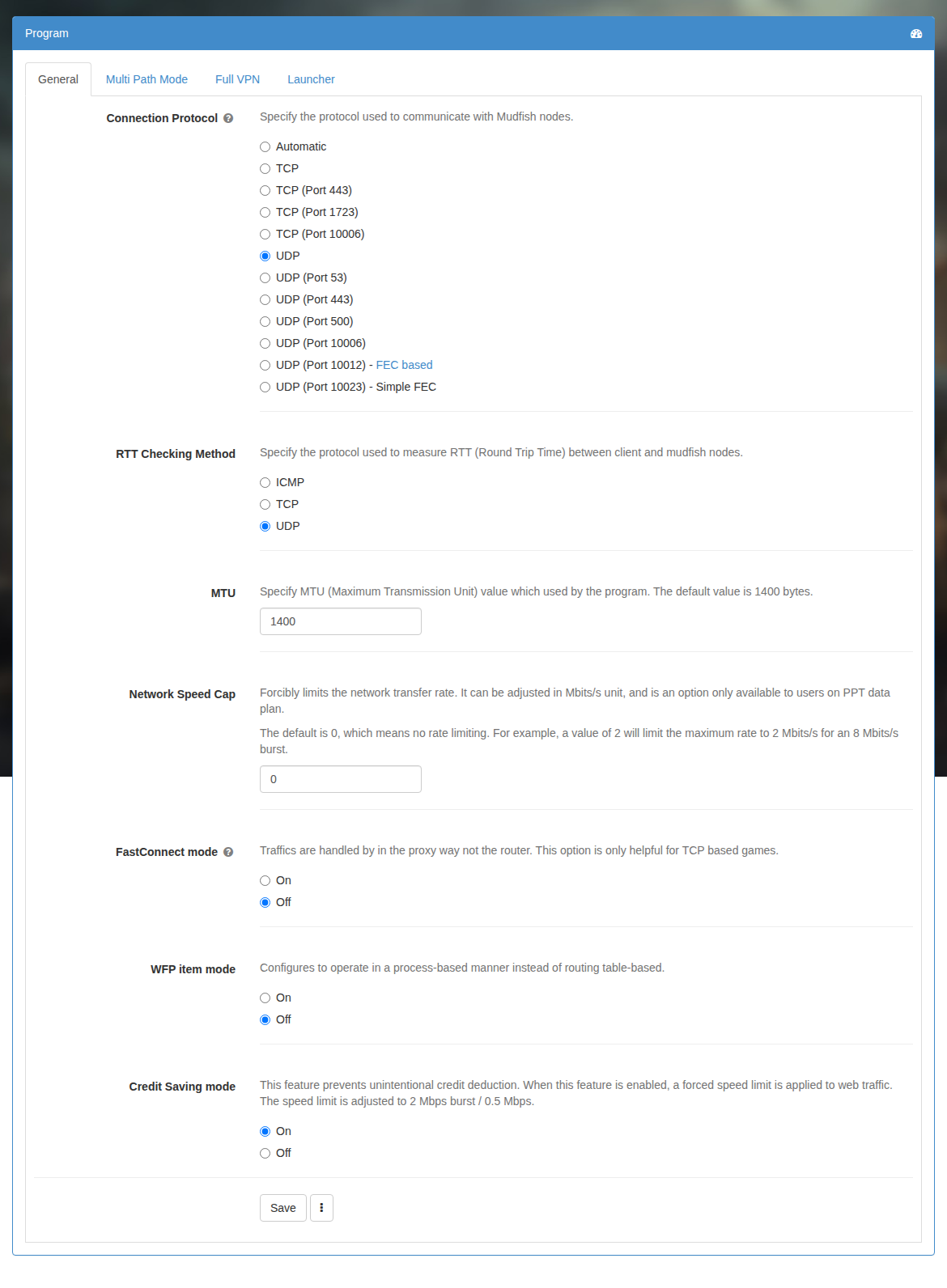
You can also sign out, exit Mudfish completely and restart it.
How long does auto configuration usually take?
It depends on the following things:
-
How mudfish node option of your items are set.
If you're using 'Auto Selection' mode, it could take some times to calculate RTT between your desktop and mudfish nodes.
-
How long DHCP client takes time to lease IP address.
If this progress didn't work fast, normally it shows MUDEC_00044 and MUDEC_00045 error codes.
Without these problems, it takes 5 ~ 10 seconds for auto configuration to be completed.
Do I need to turn on the Mudfish program whenever I play game?
Yes because the private channel between your computer and Mudfish VPN server should be created.
arp: AA:BB:CC:DD:EE:FF is using my IP address 0.0.0.0 on reX
Sometimes you can see a message like the title from ARP protocol. It indicates that other user of Mudfish uses same IPv4 address with you so packets could be directed to your path on Mudfish VPN server. This problem is caused:
-
When the server daemon managing the internal private IPv4 address crashed abnormally.
-
When you hibernated your desktop or laptop for long time then waked up without terminating Mudfish.
To solve this problem, you should restart Mudfish application.
Is 10 Mbit/s my maximum speed with TAP-Win32 adapter v9?
No. This 10 Mbit/s is to keep the backward compatibility and TAP-Win32 adapter v9 is virtual network driver (not physical). So its maximum speed is up to your CPU performance.
How is Mudfish different from a typical VPN?
Mudfish does not use Full VPN routing by default. It routes only the traffic covered by equipped items. Full VPN mode sends all network traffic from the computer through the selected VPN node, as typical PPTP or L2TP setups do.
Why has my public IP not changed?
A general IP-checking website may still use your normal connection when only a game item is enabled. Use the item verification procedure, or enable Full VPN mode to test the whole connection.
Does Mudfish work over Wi-Fi?
Yes. It works over both Ethernet and Wi-Fi.
How do I change the interface language?
Click the person icon in the upper-right corner, open “My Profile”, and change “Language”. See Account settings.
In the v4 dashboard, this setting is under “Setup → Account → Edit Profile”.
Launcher opens an unexpected website.
Malware may have changed the computer's browser settings. Scan the computer with antivirus or anti-malware software, then try again.
Mudfish has stopped after I leave my laptop idle.
Mudfish exits when the computer enters sleep or hibernation. Adjust the laptop's power-saving settings if you need it to remain running.
Can Launcher open its login page in Chrome?
Set Chrome as your default browser. If that does not work in older Windows setups, check the default-browser registry entries used by Launcher:
HKEY_CURRENT_USER/Software/Clients/StartMenuInternetsupplies the browser name. If it is missing, Launcher falls back toIEXPLORE.EXE.- For a value of
CHROME.EXE, Launcher reads the command fromHKEY_LOCAL_MACHINE/SOFTWARE/Clients/StartMenuInternet/CHROME.EXE/shell/open/command.
Check whether these entries point to the intended browser.
Which operating systems are supported?
See Desktop installation for platform and version requirements. Older releases were tested on Ubuntu 14.04/16.04 LTS (64-bit), OS X 10.11, Windows XP SP2 or later (32-bit), and Windows 7/8/8.1/10 (32-bit and 64-bit). The historical test list did not include 64-bit XP or Vista; use the installation guide for newer package requirements.
Automatic login does not work.
Check for browser extensions or cleanup tools that automatically clear browser data, and for antivirus or firewall features that inspect web traffic. Try another default browser to determine whether the issue is browser-specific.